How to Self-Host Your Own Cloud Storage at Home (And Ditch iCloud or Google Drive)
Learn how to self-host your own cloud storage at home and finally stop paying for iCloud or Google Drive. Simple steps anyone can follow.
Read in
How to Self-Host Your Own Cloud Storage at Home (And Ditch iCloud or Google Drive)
Quick Answer: To self-host your own cloud storage, you need an old computer, a Raspberry Pi, or a NAS box, some hard drives, and free software like Nextcloud. Install it, connect it to your home network, and you get private storage you control — no monthly fees, no storage limits set by someone else.
Here's the thing. You're probably paying $10, $20, or more every single month just to store your own photos and files. That adds up fast. And the wild part? You don't own that storage. A company does.
If you've ever gotten a "storage full" notice from iCloud or Google Drive, you already know the frustration. Your files feel like they're being held hostage until you pay up.
That's exactly why so many people are learning how to self-host your own cloud storage at home. It's cheaper long-term, it's private, and honestly, it's not as hard as it sounds. This guide walks you through it step by step, in plain English.
What Is Self-Hosted Cloud Storage?
In-content ad slot300 × 250 / responsive
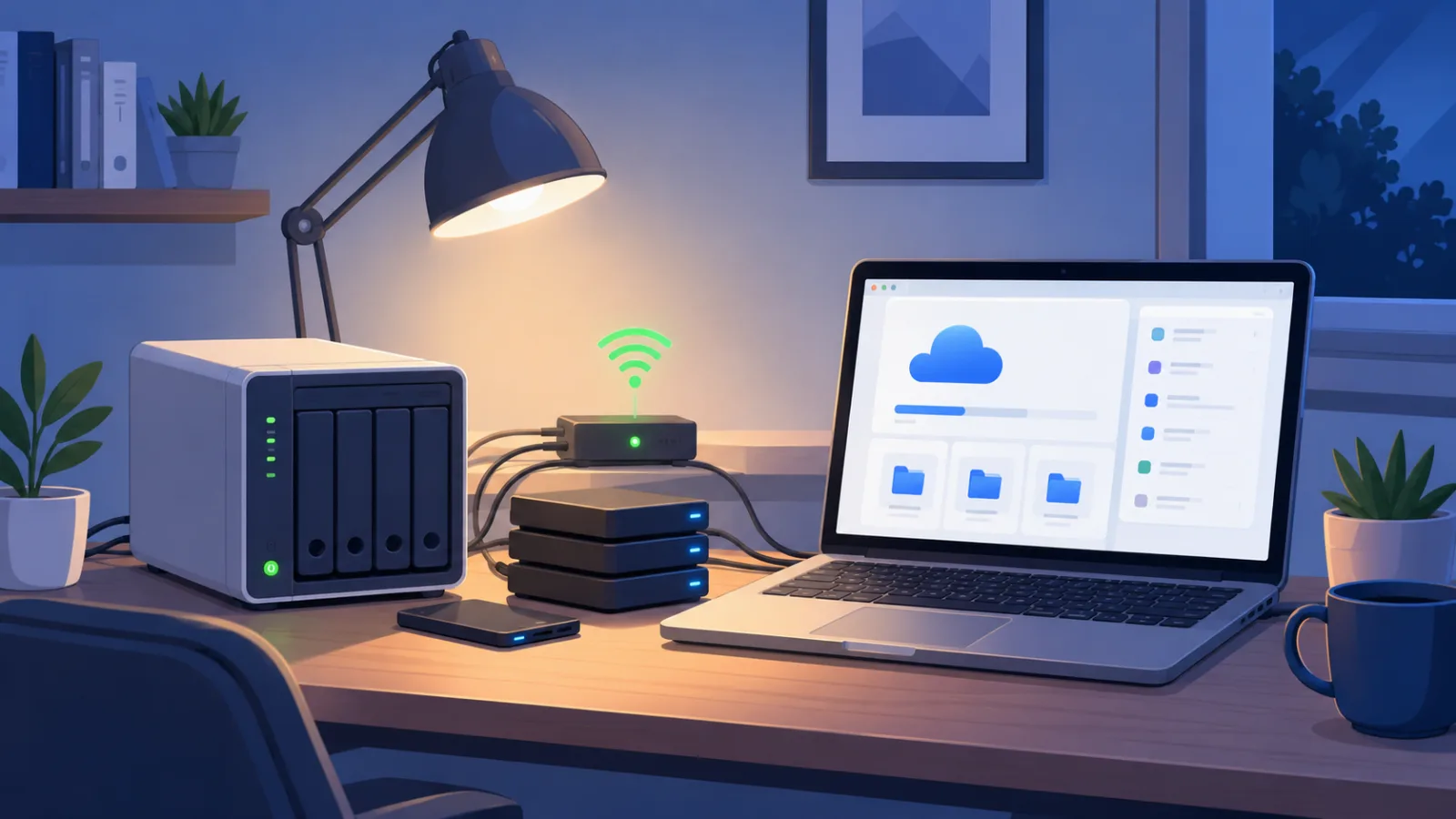
Self-hosted cloud storage means you run your own private cloud server, usually right in your house. Instead of Apple or Google storing your files on their servers, your own hardware does the job.
You still get the same convenience. You can upload photos, sync files across devices, and share links with friends. The only difference? You own the hardware, and nobody else can peek at your data.
This matters because your files stay yours. No company scans them, sells your data, or locks you into a subscription just to access your own memories.
Why Self-Hosting Your Own Cloud Storage Beats iCloud and Google Drive
Let's break down why so many people are switching over:
● No monthly bills. Once your setup is running, storage is basically free.
● No storage caps. Add a bigger hard drive whenever you want more space.
● Full privacy. Your files never touch a company's servers.
● No surprise price hikes. Big cloud companies raise prices often. Yours won't.
● Total control. You decide who gets access, and you can pull the plug anytime.
Sound familiar? If you've felt annoyed paying for space you already "own," you're not alone. This is exactly the fix.
How to Self-Host Your Own Cloud Storage at Home in 6 Easy Steps
Ready to get started? Here's the simple path, broken into steps anyone can follow.
Step 1: Pick Your Hardware
You don't need anything fancy. A Raspberry Pi, an old laptop, or a dedicated NAS device (like a Synology box) all work great. Pick based on your budget and how much storage you need.
Step 2: Add Storage
Grab one or two hard drives or SSDs. For most homes, 2TB to 4TB is plenty to start. You can always add more drives later.
Step 3: Choose Your Software
Nextcloud is the most popular pick, and for good reason. It's free, it's beginner-friendly, and it looks a lot like Google Drive. Other solid options include Seafile and OwnCloud.
Step 4: Install the Software
Most self-hosting apps come with a simple install wizard. You'll set up an admin account, pick a storage folder, and you're basically done. It usually takes less than 30 minutes.
Step 5: Connect It to Your Home Network
Plug your device into your router, give it a static IP address, and make sure it's always powered on. This keeps your cloud storage accessible anytime you need it.
Step 6: Set Up Remote Access
Want to reach your files when you're away from home? You'll need to set up remote access, usually through a service like Tailscale or a reverse proxy. This step keeps things secure while still letting you connect from your phone or laptop.
Once you're comfortable with the basics, you might want more detailed walkthroughs and troubleshooting help. That's where [Blogslet's step-by-step tech guides] come in handy, especially if you get stuck on a specific setup.
Benefits of Running Your Own Cloud Storage
Beyond saving money, self-hosting brings some real perks:
● Faster local access. Files on your home network often load quicker than pulling from the internet.
● Backup flexibility. You control exactly how and where backups happen.
● No forced software updates. Update on your own schedule, not theirs.
● Family sharing made simple. Set up separate folders and accounts for everyone in your house.
● Learning experience. You'll actually understand how your data is stored and protected.
Common Mistakes People Make (And How to Fix Them)
Mistake 1: Skipping Backups
Your home server can still fail. Always keep a second backup, even a simple external hard drive works.
Mistake 2: Weak Passwords
Don't reuse an old password. Use a strong, unique one and turn on two-factor authentication if your software supports it.
Mistake 3: Ignoring Software Updates
Old software has security holes. Set a reminder to update your self-hosted cloud storage every month.
Mistake 4: No Remote Access Security
Opening your home network to the internet without protection is risky. Always use a secure tool like a VPN or Tailscale, never leave ports wide open.
Mistake 5: Underestimating Storage Needs
Photos and videos pile up fast. Buy a bit more storage than you think you'll need right now.
Self-Hosted Storage vs iCloud vs Google Drive
Feature
Self-Hosted Storage
iCloud
Google Drive
Monthly Cost
Free after setup
$2.99–$9.99/mo
$1.99–$9.99/mo
Storage Limit
Set by you
Fixed tiers
Fixed tiers
Privacy
Full control
Company-managed
Company-managed
Setup Effort
Moderate, one-time
None
None
Access Anywhere
Yes, with setup
Yes
Yes
Pro Tips for a Smooth Setup
● Label your drives so you always know which one holds what.
● Use a UPS (battery backup) to protect against power outages.
● Set automatic backups to a second drive or offsite location.
● Start small, then expand your storage as your needs grow.
● Join a self-hosting community online for quick troubleshooting help.
● Document your setup so you can rebuild it fast if something breaks.
Why Blogslet Is Your Best Resource for This
Blogslet focuses on breaking down tech topics into simple, honest, no-nonsense guides. You won't find fluff here, just clear steps that actually work.
Whether you're brand new to self-hosting or want to fine-tune your setup, Blogslet gives you the depth and accuracy you need to get it right the first time.
Frequently Asked Questions
Is it hard to self-host your own cloud storage?
Not really. If you can follow a basic install wizard, you can do this. Most beginners finish their first setup in an afternoon, even without any tech background.
How much does self-hosting cloud storage actually cost?
Your biggest cost is the one-time hardware purchase, usually $100 to $300. After that, it's mostly free, aside from a small bump in your electric bill.
Is self-hosted cloud storage safe?
Yes, as long as you use strong passwords, keep software updated, and secure remote access properly. It can actually be safer than trusting a third-party company with your files.
Can I access my self-hosted cloud storage from my phone?
Absolutely. Most self-hosting apps, like Nextcloud, have free mobile apps that let you upload and view files from anywhere, just like Google Drive or iCloud.
What happens if my hardware breaks?
As long as you keep a backup drive, you won't lose your files. Just swap in new hardware, reinstall your software, and restore from your backup.
Do I need to be a tech expert to self-host cloud storage?
No. You'll need patience and a willingness to follow steps carefully, but you don't need coding skills or an IT background to get it running.
Final Thoughts
You don't have to keep paying monthly fees for storage you should already own. Once you know how to self-host your own cloud storage, you get more space, more privacy, and more control, all for a fraction of the long-term cost.
Start small, follow the steps above, and you'll have your own private cloud running before you know it. And if you want more beginner-friendly tech breakdowns like this one, keep exploring Blogslet for guides that actually make sense.
Keep reading