How to Stay Safe on Public WiFi at Cafes, Airports, and Hotels
Quick Answer: To stay safe on public wifi, connect only to networks you can verify, stick to HTTPS websites, turn off file sharing and auto-connect, and use a VPN for anything sensitive. Save banking and shopping for your phone’s cellular data, which is far harder for strangers to snoop on. Picture this: you’re at the airport, your flight is delayed, and a network called “Free_Airport_WiFi” pops up. You tap it without thinking — along with half the people at your gate. The problem? Anyone can name a hotspot anything, including a scammer sitting three rows away. Learning how to stay safe on public wifi doesn’t mean giving up free internet. It means spending two minutes on setup so snoops get nothing useful from you. This guide walks you through every step in plain English, no networking degree required. Read it now, thank yourself at your next layover.
Read in
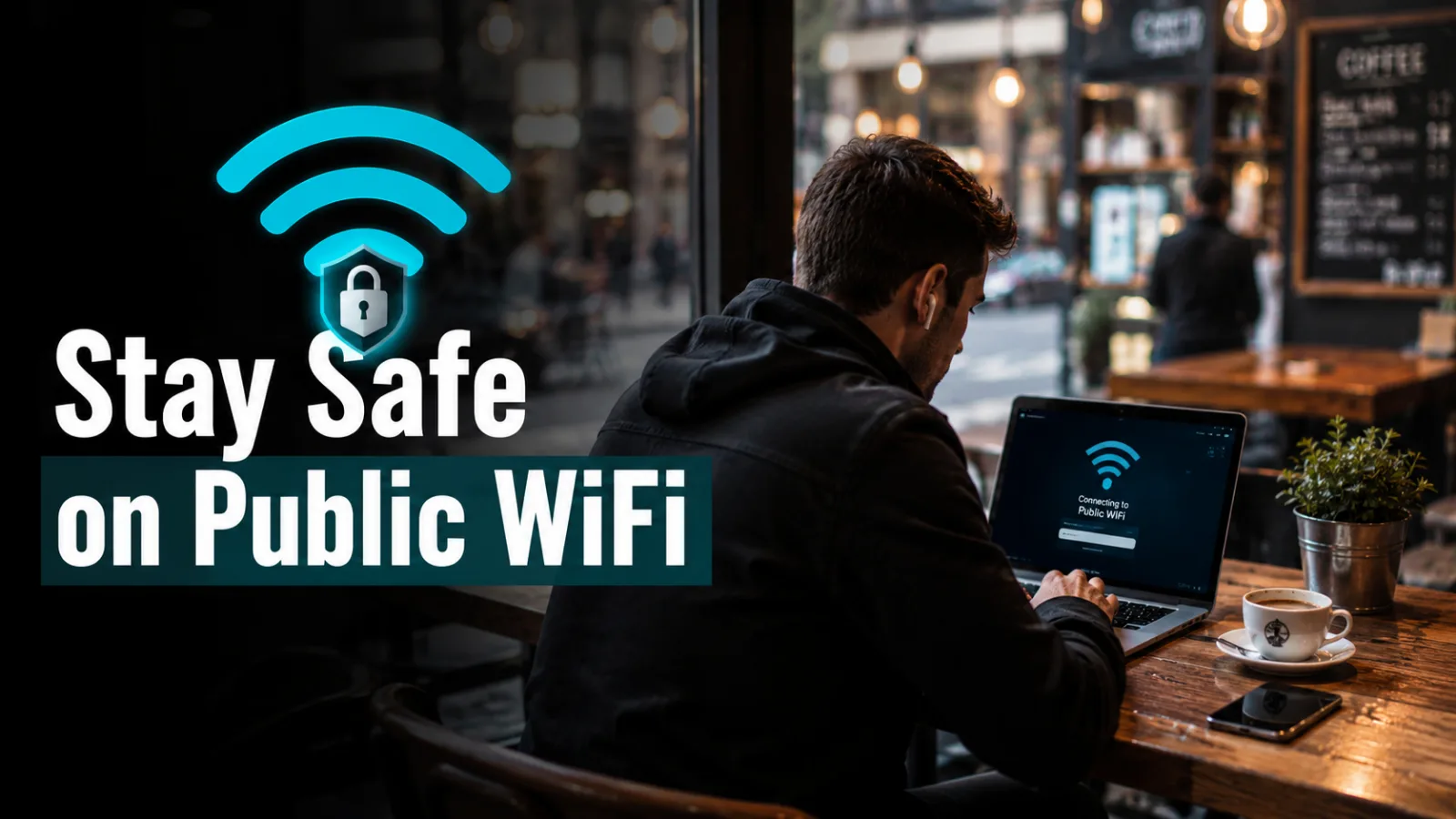
What Does “Public WiFi” Really Mean for Your Data?
In-content ad slot300 × 250 / responsive
Public wifi is any network open to strangers — coffee shops, hotels, airports, libraries, gyms. Unlike your home network, you don’t control who else is on it or who set it up.
That creates two risks. First, on open networks, other users may be able to observe unprotected traffic. Second, attackers can set up a fake hotspot — called an evil twin — with a trustworthy name to lure your device in.
Here’s why this matters: your laptop and phone happily reconnect to familiar names on their own. Understanding the risk is what turns you from an easy target into a hard one.
Why Free Hotspots Attract Trouble
Public networks are a favorite hunting ground for a few simple reasons:
No password, no barrier. Anyone within range can join, including people with bad intentions.
Fake networks are effortless to create. A laptop and free software can broadcast “CoffeeShop_Guest_2” in seconds.
People do sensitive things while bored. Waiting rooms and layovers are exactly when folks check bank balances.
Devices auto-connect silently. Your phone may join a network before you even take it out of your pocket.
Crowds mean cover. In a busy terminal, nobody notices one more “user” watching the traffic.
How to Stay Safe on Public WiFi in 7 Practical Steps
The truth is, a few settings and habits handle almost all of the risk. Do these in order.
Step 1: Confirm the Network Name Before Joining
Ask an employee for the exact network name, or check the signage. “Starbucks WiFi” and “Starbucks Free WiFi” can be two different things — and one of them might belong to a stranger. When two similar names appear, connect to neither until you confirm.
Step 2: Turn Off Auto-Connect and Forget the Network After
In your wifi settings, disable auto-join for public networks, and tap “Forget This Network” when you leave. That stops your device from silently reconnecting next month — possibly to a fake with the same name.
Step 3: Look for HTTPS on Every Site
Check for the padlock icon or “https://” in the address bar before typing anything. HTTPS scrambles the data between you and the website, so even on sketchy wifi, your passwords aren’t traveling in plain view. If a login page shows “not secure,” close it.
Step 4: Switch On Your VPN for Sensitive Tasks
A VPN wraps all your traffic in a protected tunnel, hiding it from everyone on the local network. Turn it on before you log into email or anything tied to money. Many reputable VPNs cost just a few dollars a month, and some solid ones have free tiers.
Step 5: Turn Off Sharing Features
Head to your settings and disable file sharing, AirDrop for strangers, and network discovery while you’re out. These features are handy at home and an open door in public. On Windows, choosing “Public network” when you connect handles most of this automatically.
Step 6: Save Banking for Cellular Data
Your phone’s LTE or 5G connection is much harder to intercept than open wifi. Moving money, paying bills, shopping with a card? Switch wifi off for five minutes and use your data plan. It’s the simplest security upgrade there is.
Step 7: Keep Your Devices Updated
Security patches close the exact holes attackers probe for on shared networks. Turn on automatic updates for your phone, laptop, and browser. An updated device on public wifi is safer than an outdated one on almost any network.
And since sketchy networks and sketchy messages often team up, this [guide to spotting phishing emails in seconds] makes a perfect follow-up read.
Run through these seven steps once, and most of them stay set forever. Try them before your next coffee shop work session and see how little effort “safe” actually takes.
The Payoff of Locking Down Your Connection
Two minutes of setup buys you a lot:
Your passwords stay private even on networks you don’t trust.
You can work from cafes and airports without second-guessing every login.
Your accounts stay yours — no surprise password-reset emails at midnight.
Travel gets easier because hotel wifi stops being a gamble.
Your saved cards and shopping accounts stay out of strangers’ reach.
You skip the hours of cleanup that follow a compromised account.
Risky Public WiFi Habits (And How to Break Them)
Most wifi trouble comes from a handful of habits. Here’s each one with its fix.
Habit 1: Joining the Strongest Signal Without Checking
Attackers count on people grabbing whatever appears first. Fix: verify the official network name with staff or signage before you connect, every time.
Habit 2: Letting Your Phone Remember Every Network
A saved public network means silent auto-reconnections for years. Fix: forget public networks when you leave, and audit your saved list once in a while.
Habit 3: Logging Into Your Bank at the Gate
Boredom plus a layover equals risky habits. Fix: use your cellular data for money matters — it takes one swipe to turn wifi off.
Habit 4: Ignoring “Not Secure” Warnings
Your browser flags unprotected pages for a reason, and clicking through anyway hands over your typed data. Fix: treat that warning as a full stop on public networks, no exceptions.
Habit 5: Leaving Bluetooth and Sharing On Everywhere
Every open channel is another door into your device. Fix: flip on airplane mode’s selective controls — wifi on, sharing and Bluetooth off — when working in public.
Public WiFi vs. Phone Hotspot: Which One Should You Trust?
Factor
Public WiFi
Your Phone’s Hotspot
Who controls it
Unknown — could be anyone
You
Password protection
Often none
Set by you
Snooping risk
Higher, shared with strangers
Low, private connection
Speed
Varies wildly
Usually steady LTE/5G
Cost
Free
Uses your data plan
Best for
Casual browsing, streaming
Banking, work, shopping
The smart pattern: browse on public wifi, but switch to your hotspot for anything you’d hate a stranger to see.
Traveler-Tested Tips for Safer Browsing Anywhere
Set your VPN to launch automatically whenever you join an unknown network.
Use two-factor authentication so a stolen password alone gets an attacker nowhere.
Charge from a wall outlet or your own battery pack instead of unknown USB ports.
Log out of sensitive accounts when you finish, not just close the tab.
Name-check the network with staff at small cafes — fakes thrive where signage is missing.
Keep a short “public mode” routine: sharing off, VPN on, wifi forgotten at exit.
If a captive portal asks for way too much personal info, skip the network entirely.
Frequently Asked Questions
Is it safe to check my bank account on hotel wifi?
Do it over your phone’s cellular data or with a VPN switched on instead. Hotel networks serve hundreds of strangers, and their login portals don’t add real protection. If you must use the hotel connection, confirm the network name at the front desk, verify HTTPS, and log out completely when you finish.
Can someone see what I’m doing on public wifi?
On an open network, a nearby snoop can see which sites you visit, though HTTPS hides what you type and read on each page. A VPN hides even the site names. So the practical answer: assume the network is being watched, and let HTTPS plus a VPN make that watching worthless.
How do I spot a fake wifi hotspot at an airport?
Watch for near-duplicate names, like “JFK_Free_WiFi” next to “JFK Free WiFi Official.” Check the airport’s website or signage for the real name. Be suspicious of networks with no login page in places that normally have one, and of any hotspot that asks for card details just to connect.
Does using a VPN on public wifi slow down my internet?
A little, usually. Encryption adds a step, and your traffic takes a short detour through the VPN’s server. On decent connections, you may not notice a difference for browsing and email. Choose a server near your location for the best speed, and remember: slightly slower but private beats fast and exposed.
Should I use free wifi without a VPN at all?
Casual browsing — news, maps, streaming — is generally fine without one, since most major sites use HTTPS now. The line to draw: no logins to money-related accounts, no entering card numbers, and no work files on unverified networks. For those, switch to cellular data or turn the VPN on first.
Why does my phone connect to public wifi by itself?
Your phone remembers every network you’ve joined and rejoins any broadcast with a matching name — which is exactly what fake hotspots exploit. Turn off auto-join for public networks in your wifi settings and delete saved public networks. From then on, connecting becomes a choice you make, not a default.
Wrapping Up: How to Stay Safe on Public WiFi
Free internet doesn’t have to cost you your privacy. Now that you know how to stay safe on public wifi — verify the name, force HTTPS, cut the sharing features, and lean on a VPN or cellular data for the sensitive stuff — that airport hotspot loses its bite. Put the checklist to work on your very next connection, and keep Blogslet handy for more no-jargon security guides.
Verification Checklist
Total Word Count: 1712 Focus Keyword Count: 25 (exact + close variants) Keyword Density: 1.5% Estimated Flesch Reading Ease: 81 H2s: 9 | H3s: 18 Internal Link Anchor: “guide to spotting phishing emails in seconds” Image Alt Text 1: Traveler at an airport learning how to stay safe on public wifi on a laptop Image Alt Text 2: Settings checklist for how to stay safe on public wifi with a VPN enabled SEO Score Estimate: 92% AI Detection Risk: Low
Keep reading